Configuring users
Only ICE administrators at University Hospitals Birmingham NHS Foundation Trust (UHB) can provide ICE usernames and passwords, which are set using EMAS Manager.
- Click on the 'EMIS sphere' in the top left hand corner of screen
- Select 'System Tools'
- Select 'EMAS Manager'
- Select 'Test Requests'
- Highlight 'Heart of England' as the provider
- Select 'Users'
- Select 'Edit'
- Click on the username
- Enter the username and password (the information provided serves as both the username and the password)
- Click 'OK'
- Save settings
Making a pathology request
- Find a patient
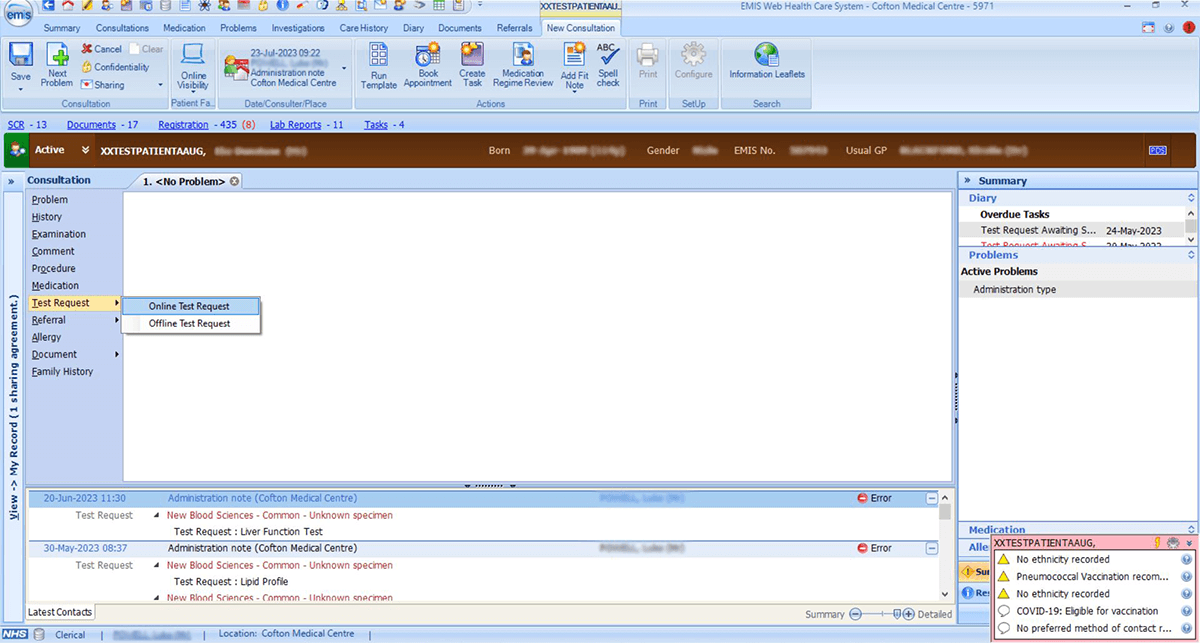
- Open a new consultation
- Select 'Test Request'
- Select 'Online Test Request'
- Confirm the test provider as 'Heart of England' to proceed
- The ICE application will launch
Viewing reports
For quick access to patient pathology results:
- Find the patient
- Open a new consultation
- Select 'Investigations' from the toolbar
- Select the 'Patient Report List' icon
- The ICE application will launch in report view

Viewing the request list
To see a list of requests that have been made (to edit, delete, reprint or check the status):
- Select 'Diary' from the toolbar
- Scroll down to the 'Tasks' section
- Select the test
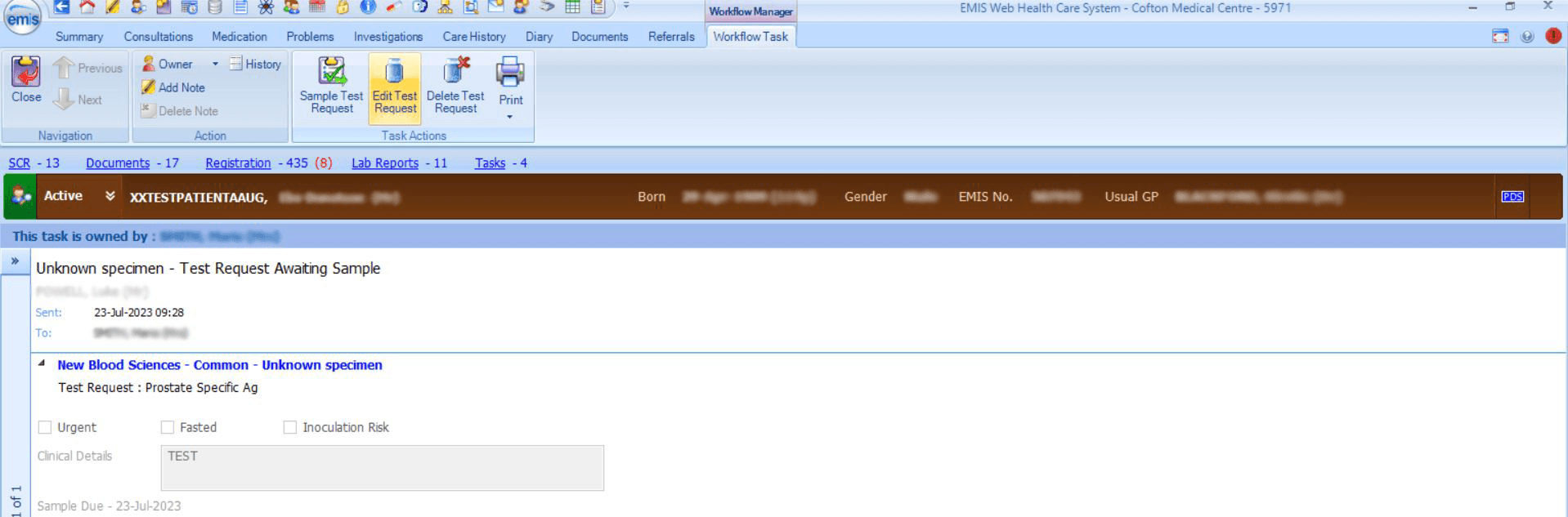
- Select 'Open' which will take you to the workflow manager
- Select the 'Edit Test Request' icon
- The ICE application will launch the request list
Last reviewed: 04 December 2024